WhatsAppBee · Dashboard & Analytics
WhatsApp Analytics: Delivery, Read and Response Rates
Without reports, you can’t tell which offer worked or how quickly your team replies. WhatsAppBee’s dashboard shows it at a glance, and the analytics page goes deeper.
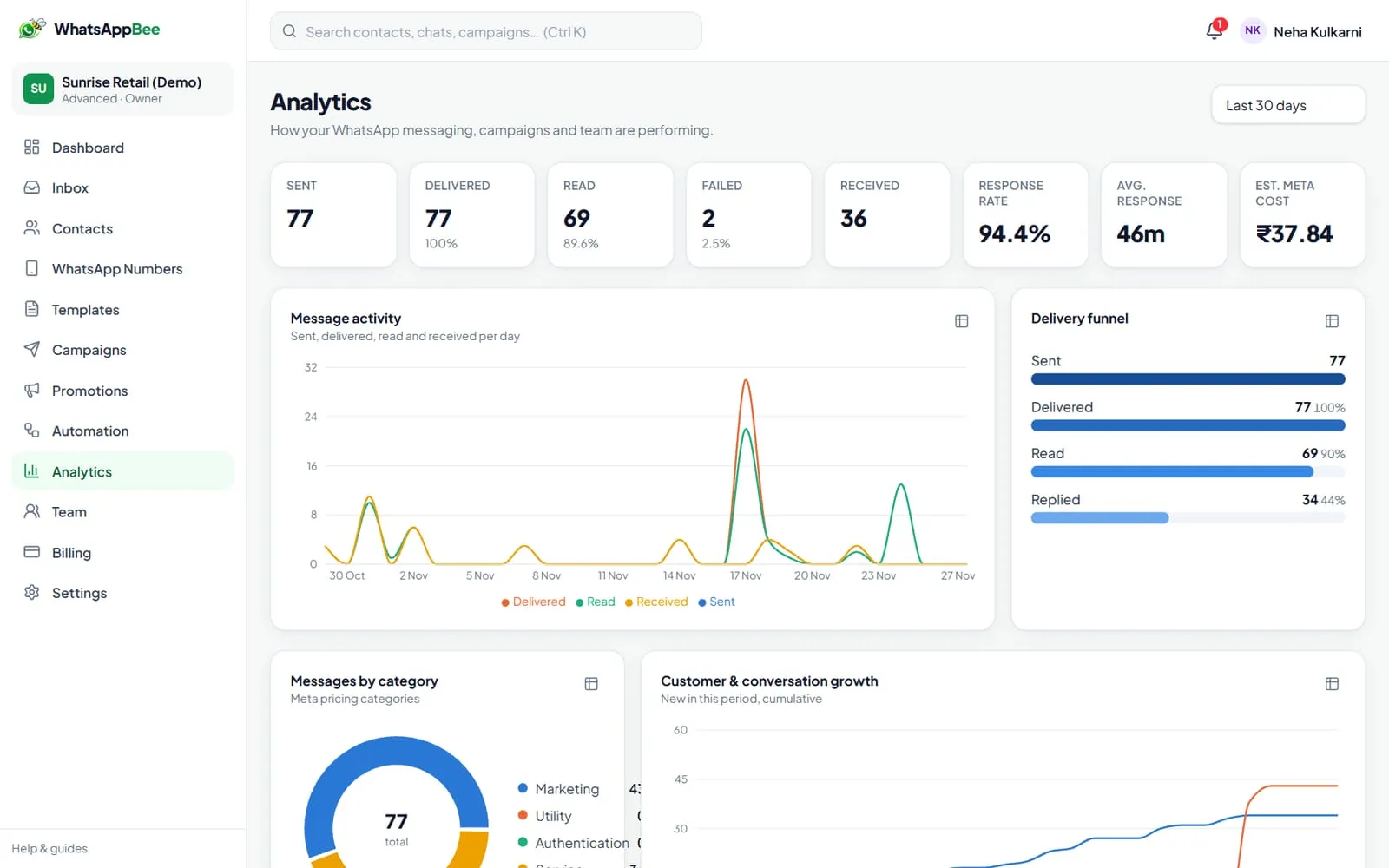
Track messages sent and received, delivery and read rates, failed messages, response rate and average response time — and compare campaigns, templates and team members. Filter by date range and by WhatsApp number.
Capabilities
Dashboard & Analytics in WhatsAppBee
Message metrics
Sent, received, delivered, read and failed.
Response metrics
Response rate and average response time.
Conversations
Active and unassigned chats, and contact growth.
Campaign performance
Delivered, read and replied per campaign.
Agent performance
How each team member is doing.
Filters
By date range and by WhatsApp number.
How it works
Step by step
- 1
Send and chat
WhatsAppBee records every message.
- 2
Open the dashboard
Today’s picture at a glance.
- 3
Dig deeper
Analytics by date, number, campaign and agent.
- 4
Improve
Repeat what works, fix what doesn’t.
Benefits
Why it matters
Know what works
Compare offers by real read and reply rates.
Faster service
Watch response time and fix bottlenecks.
Fair team view
See each agent’s workload and results.
Per-number view
Separate figures for each branch number.
FAQ
Frequently Asked Questions
Can I see reports for each WhatsApp number?
Yes. The dashboard and analytics filter by WhatsApp number and by date range.
Can I download PDF reports?
Not yet — PDF reports are not available. All figures are in the app.
WhatsAppBee
More WhatsAppBee features
Bring every WhatsApp chat into one place
Start the free trial — connect your number and send your first campaign.