WhatsApp for Business
How to Use One WhatsApp Business Number with Multiple Users (Shared Team Inbox)
When customer chats live on one phone, messages get missed. Here’s how a whole team can answer from one WhatsApp Business number — and which option fits your business.
By 7CRM Team8 min read
It starts with one phone at the counter. Customers message it with orders, questions and complaints. Then the business grows: two salespeople, a manager, maybe a second branch. Soon the same phone is being passed around, chats are answered twice or not at all, and nobody can tell who promised what.
The fix is to let your whole team use one WhatsApp Business number at the same time, from their own screens, with each chat clearly owned by one person. Here are your options, and how to set up the one that scales.
Can multiple people use one WhatsApp Business number?
Yes. There are two main ways:
- The WhatsApp Business app with linked devices. The free app lets you link a small number of extra devices (for example, WhatsApp Web on office computers) to the same number. Everyone sees the same chats.
- A shared team inbox on the official WhatsApp Business Platform. Software such as WhatsAppBee connects your number through Meta’s Cloud API, and any number of team members log in with their own accounts, see a live inbox and get chats assigned to them.
Linked devices vs a shared team inbox
| WhatsApp Business app + linked devices | Shared team inbox (official platform) | |
|---|---|---|
| Number of team members | A few devices | Each teammate has their own login (plan limits apply) |
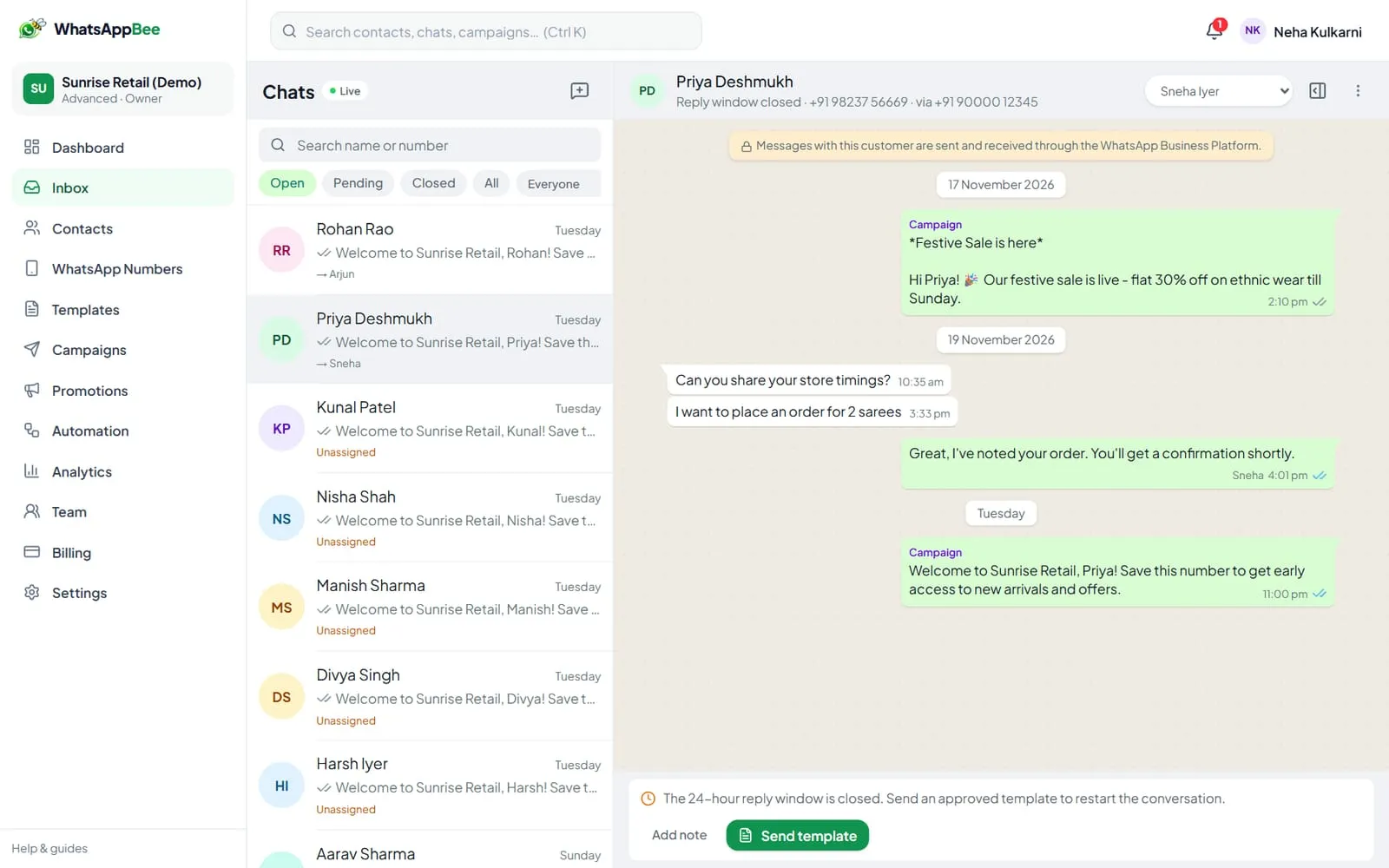
| Who is handling a chat? | Not visible | Each chat is assigned to a person |
| Chat status | None | Open, pending or closed |
| Internal notes | No | Notes only the team can see |
| Bulk messages | Broadcast lists, limited | Campaigns to tags or segments, tracked per customer |
| Reports | Basic | Response time, read rate, agent performance |
| Several numbers in one place | No | Yes — one inbox for all branches |
Linked devices are fine for a two-person shop. Once three or more people answer customers, the missing pieces — ownership, status and notes — are what cause missed and duplicated replies.
How to set up a shared WhatsApp team inbox
Step 1: Get your number on the WhatsApp Business Platform
A shared inbox runs on Meta’s official WhatsApp Business Platform. Your business number has to be registered there. A number that is active on the normal WhatsApp app may need to be moved or registered first — the WhatsAppBee team can help with this step.
Step 2: Invite your team with the right roles
Not everyone needs the same access. A common setup:
| Role | Typical person | Access |
|---|---|---|
| Owner | Business owner | Everything, including billing |
| Admin | Office manager | Settings, team, templates and campaigns |
| Manager | Team lead | All chats, assignments and reports |
| Agent | Sales or support staff | Only the chats assigned to them |
In WhatsAppBee you can use these roles or create custom ones — see team roles and permissions.
Step 3: Decide how chats get assigned
Pick one rule and stick to it:
- By topic: price questions to sales, complaints to the manager.
- By branch: each branch number’s chats to that branch’s staff.
- Round the shift: whoever is on duty picks up unassigned chats first.
Keyword automation can do the routing for you — for example, any message containing “PRICE” goes to sales.
Step 4: Use status, tags and notes every time
- Mark chats open, pending or closed so the team can see what still needs a reply.
- Tag conversations (Order, Complaint, Enquiry) so you can find them later.
- Leave internal notes (“offered 10% discount, waiting for confirmation”) so whoever picks up next knows the story.
Step 5: Watch response time
Once everyone works from one inbox, you can measure what matters: response rate, average response time and unassigned chats. If unassigned chats pile up at lunchtime, you know where to add cover. More on this in WhatsApp marketing metrics that matter.
Don’t forget the 24-hour rule
On the WhatsApp Business Platform you can reply freely within 24 hours of the customer’s last message. After that, you need a Meta-approved template to restart the conversation. A good team inbox shows when the window has closed, so your staff don’t type a reply that can’t be sent. We explain it fully in the WhatsApp 24-hour rule explained.
Common mistakes to avoid
- Sharing one login. You lose track of who said what. Give every teammate their own account.
- No assignment rule. Two people reply to the same customer with different prices.
- Personal numbers for business. When an employee leaves, the customer history leaves with them.
- Unofficial “WhatsApp tools”. Modified apps and bulk-sender tools can get your number banned. Stick to the official platform.
Frequently asked questions
How many users can use one WhatsApp Business number?
With the WhatsApp Business app, only a few linked devices. With a team inbox on the WhatsApp Business Platform, each teammate gets their own login; the number of users depends on your plan.
Can I use several WhatsApp numbers in one inbox?
Yes, with a platform-based inbox. In WhatsAppBee you can connect several numbers — for branches or departments — and switch between “All numbers” and a single number, each with its own unread count.
Do my staff need to install anything?
No. A shared inbox such as WhatsAppBee works in the browser, like WhatsApp Web.
Try a shared inbox for your team
WhatsAppBee gives your whole team one live WhatsApp inbox with assignments, notes, tags and reports, on the official WhatsApp Business Platform. Start the free trial or read more about the shared team inbox.